
Expenses
This guide shows how to buy things for the makerspace and get your money back, how to approve other members' expenses if you are an approver, and how a group keeps track of its budget.
1. Help with the shopping
The makerspace is run by its members, and much of what it needs is bought by members themselves: consumables for a workshop, a spare part for a machine, coffee for a work day. The association is glad when you help out when you see that something is needed. You pay, upload the receipt in the app, and get the money back.
What may be bought on an expense account is decided by the groups that have access to it. They have been given a budget and decide for themselves how it is used. The account often has a description reminding you what it is meant for. It shows below the account when you choose it in the form, and in the list under Expenses → Accounts. If you are unsure, ask the group before you buy.
2. How it works
Expenses are made on an expense account. An expense account can be shared by several groups. The wood workshop's account, for example, can be used by both the wood workshop's steering group and its materials team. You can make expenses on the accounts of the groups you are an active member of. If you are not in any such group, the Expenses button on the home page is greyed out and you can't make expenses.
An expense is one of two kinds:
- Receipt — you have already paid and want the money back. The treasurer transfers the amount to the bank account in your profile.
- Invoice — the association should pay an invoice directly to the supplier. The treasurer pays the invoice, and you get no money yourself.
You upload the receipt or invoice as a photo or a PDF.
Every expense must be approved by someone other than you, one of the account's approvers. Nobody can approve their own expense. Once approved, the expense shows as Confirmed, and the treasurer can pay it.
An expense goes through these steps:
Pending → Submitted → Confirmed → Reimbursed (receipt) or Paid (invoice)
If the approver finds something wrong, the expense can be Rejected. You then see why, can correct it and submit it again.
3. Make an expense
Add your bank account first
The treasurer needs to know where to send the money. Open the ☰ menu and choose My Profile. Under Bank account, fill in bank, clearing number and account number exactly as your bank shows them. If the account isn't your own, also fill in the account holder's name.
The Bank account section only shows for members who may make expenses.
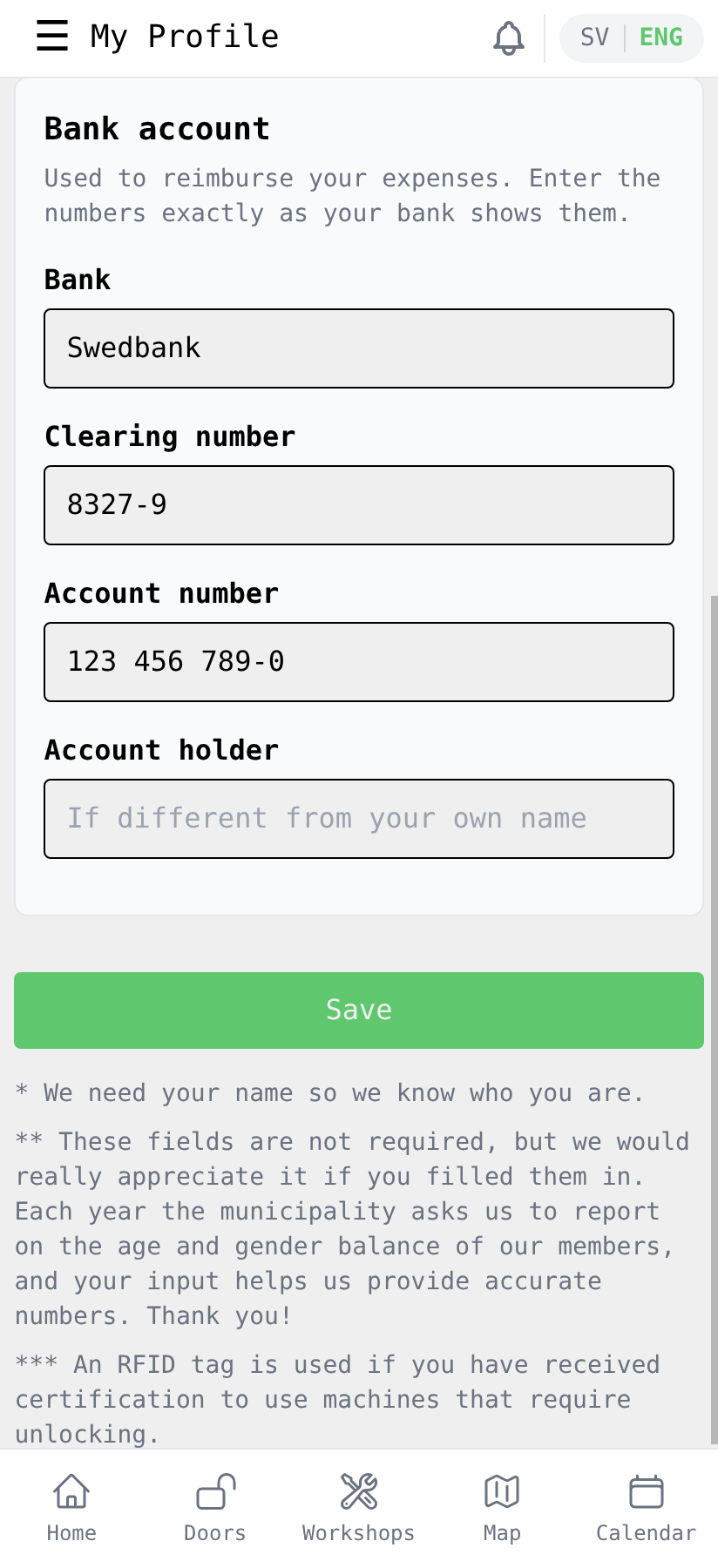
The bank account is only needed for receipts. An invoice is paid to the supplier.
Create a new expense
Every expense belongs to an expense account. You can start in two ways:
- From the account's page. Each expense account has a page of its own, which you reach from the group's page. Tapping New expense there picks the account for you. This is easiest if you have access to several accounts.
- From Expenses. Tap Expenses on the home page and then New expense. You then choose the account in the form in the next step.
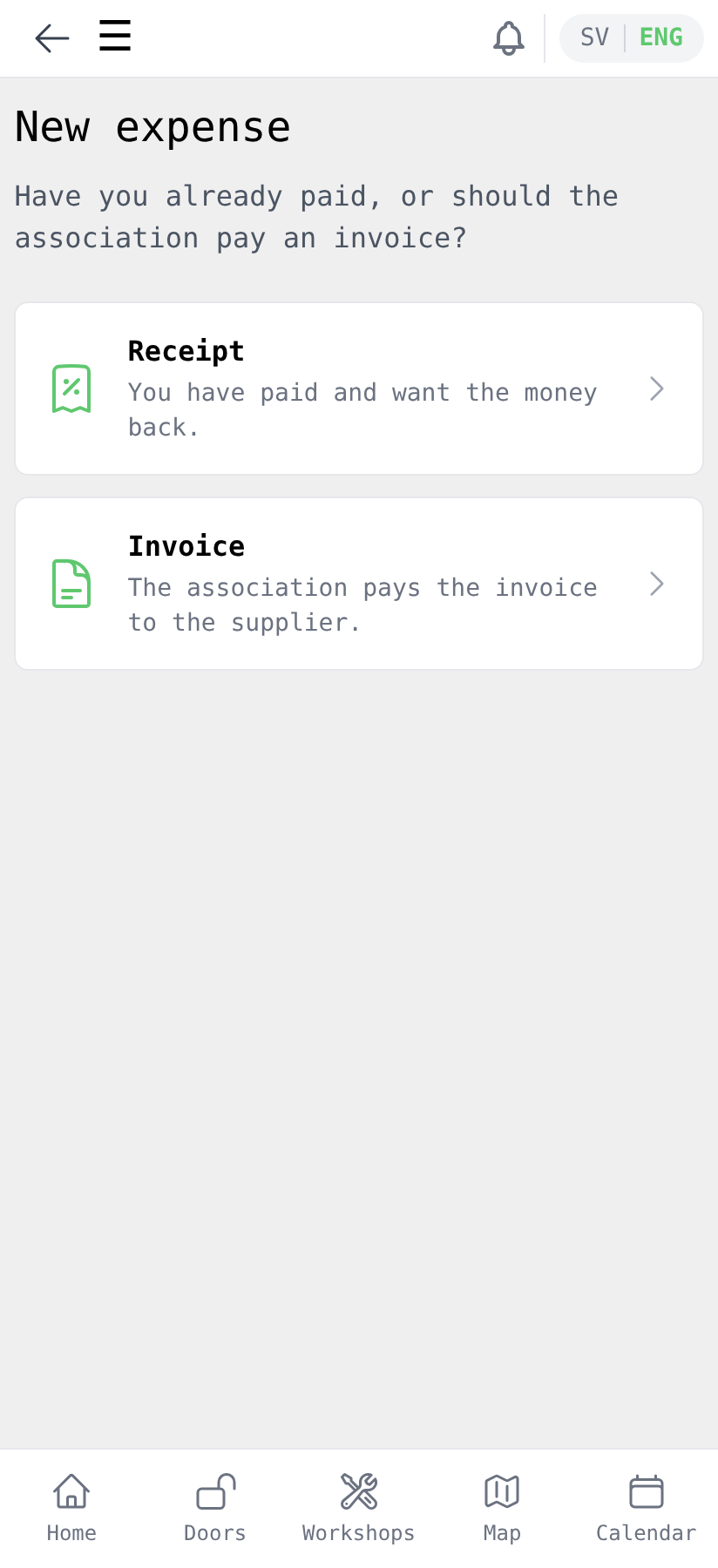
The app then asks whether you have already paid:
- Choose Receipt if you have paid and want the money back.
- Choose Invoice if the association should pay.
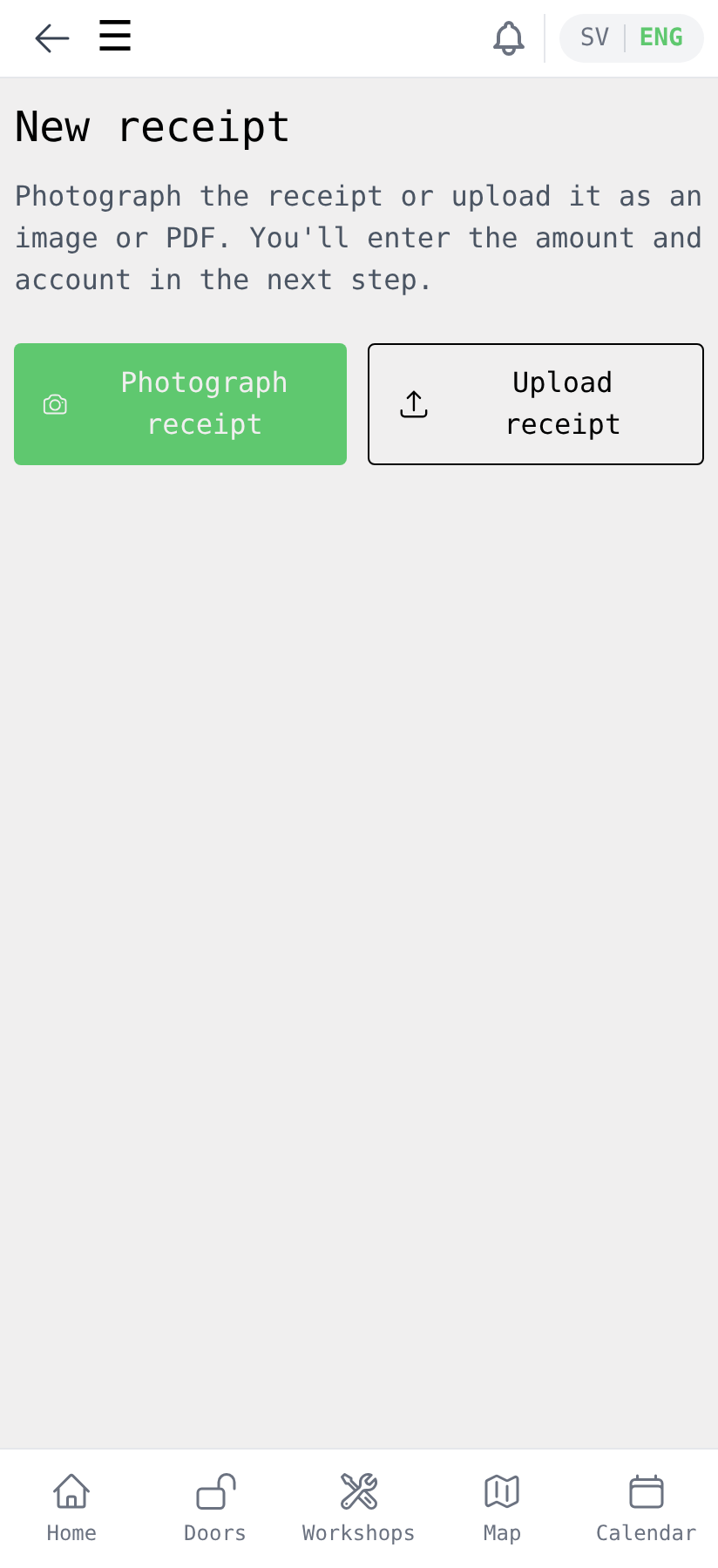
Then photograph the receipt or invoice, or upload it as an image or PDF. The expense is saved as a draft right away, so you can photograph the receipt in the shop and fill in the rest later.
Fill in the details
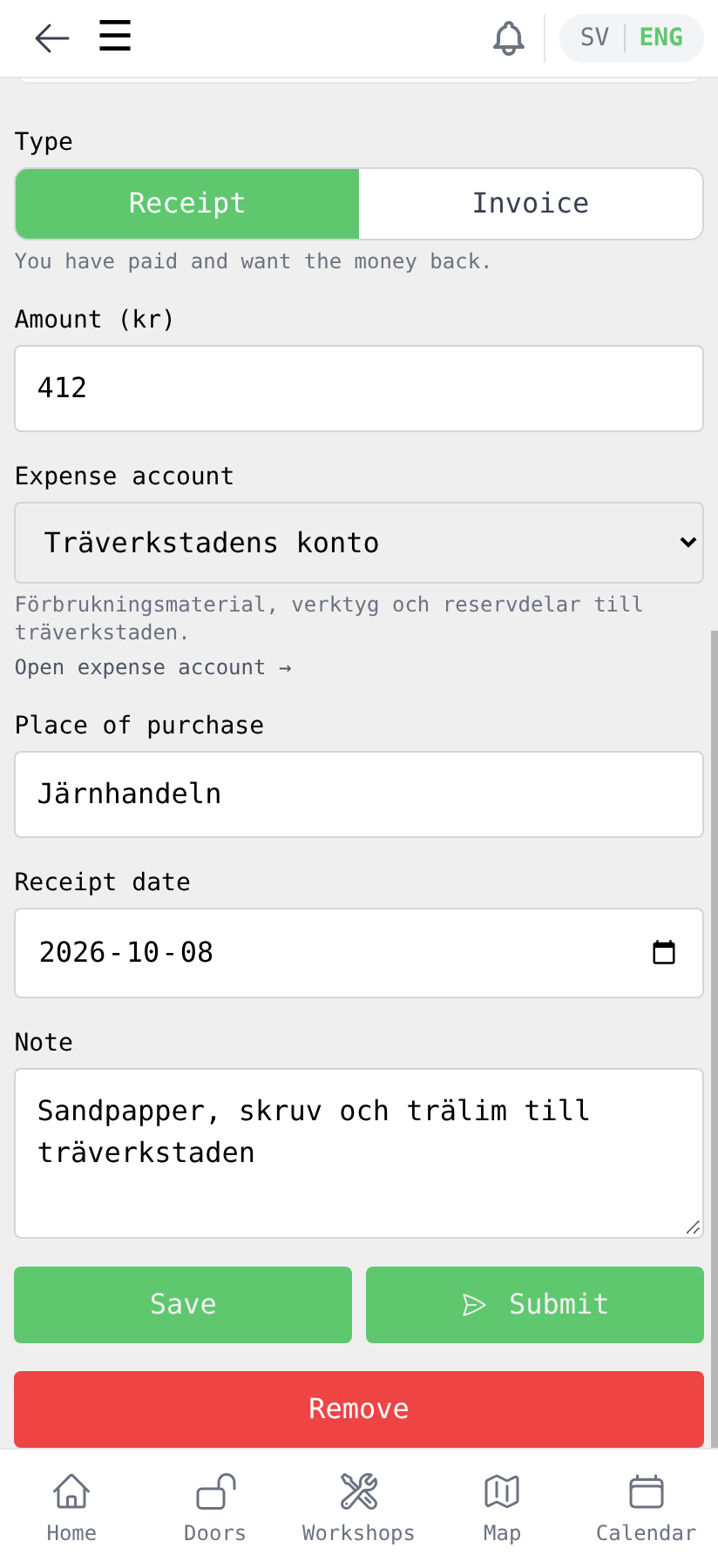
Fill in:
- Amount (kr).
- Expense account — which account the expense belongs to. The field is empty unless you started from the account's page.
- Place of purchase — where you bought it. For an invoice the field is called Supplier.
- Receipt date — or Invoice date for an invoice.
- Due date — invoices only, and required.
- Note — what you bought and what it is for.
Get a separate receipt for what should be reimbursed. If you shop both for the association and for yourself, ask for two receipts at the till. If you still end up with a mixed receipt, the note must say clearly which items should be reimbursed and what they cost. Report a receipt on one expense account only, even if the items belong to several. Then choose the account that covers most of the items.
You can switch the type at the top of the form as long as the expense hasn't been submitted.
Submit
Tap Submit. The expense becomes Submitted and is visible to the account's approvers. To continue later, tap Save instead.
Follow your expense
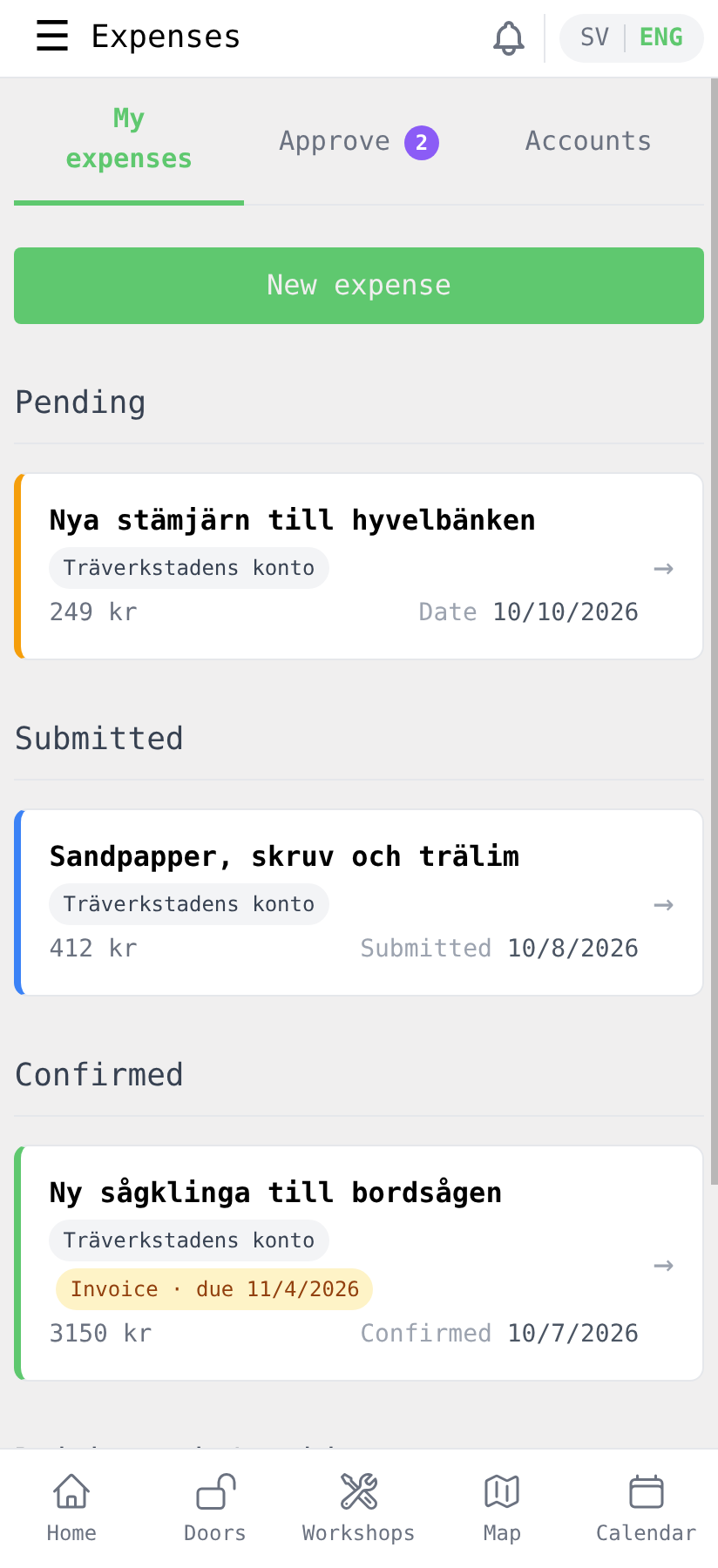
Under My expenses you see all your expenses, ordered by status. Each row shows the amount, the account and the date of the latest step. Invoices are marked Invoice with their due date until they are paid.
If you need to change something
A submitted expense can't be edited. Open it and tap Retract to turn it back into a draft, which you can correct and submit again.
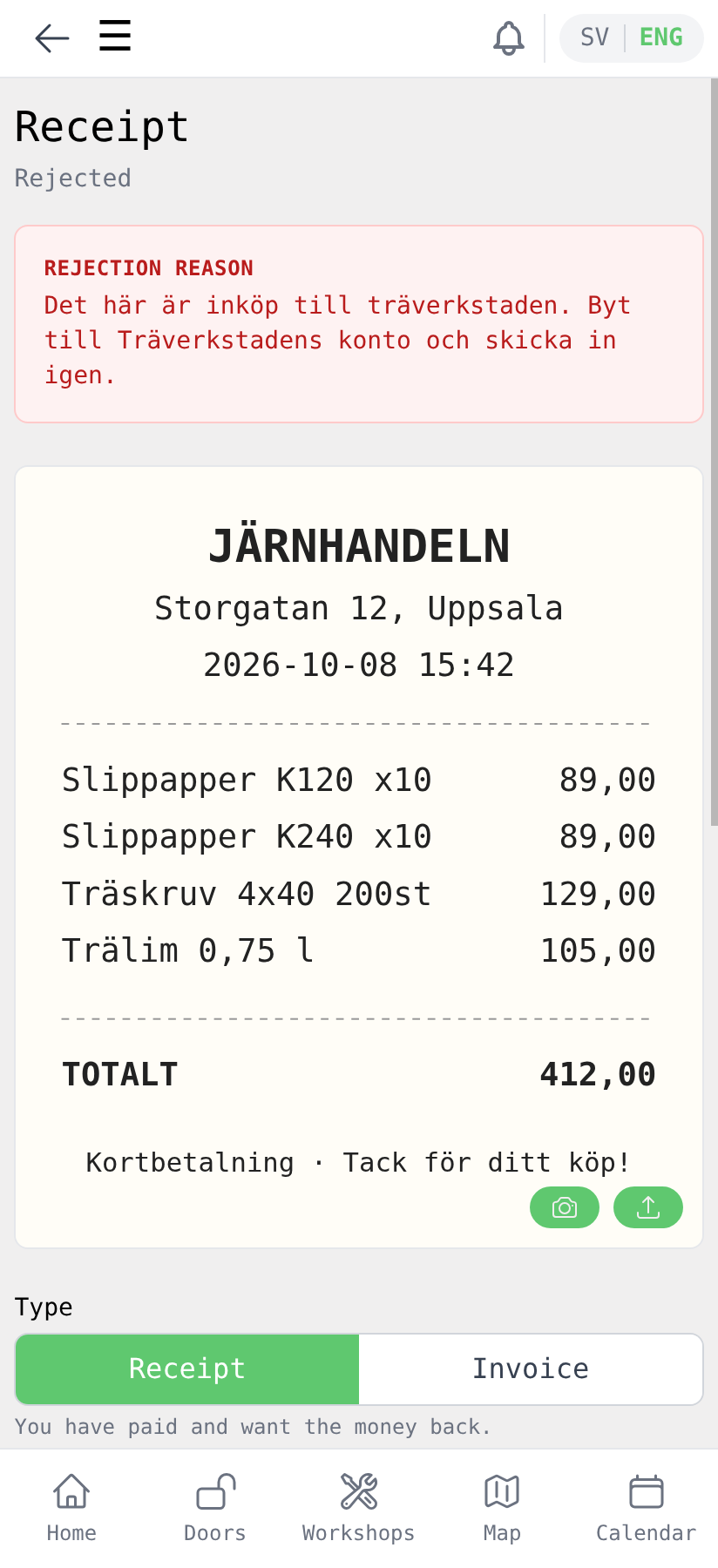
If the expense has been Rejected, the reason is shown at the top. Correct what is needed and submit again.
Once the expense is confirmed you can no longer change it. Contact the treasurer if something is wrong.
4. Approve an expense
This section is for you if you are an approver for an expense account. Approvers can be individual members of the account's groups or a whole group, whose active members may then all approve. Each account should have at least two people who can approve.
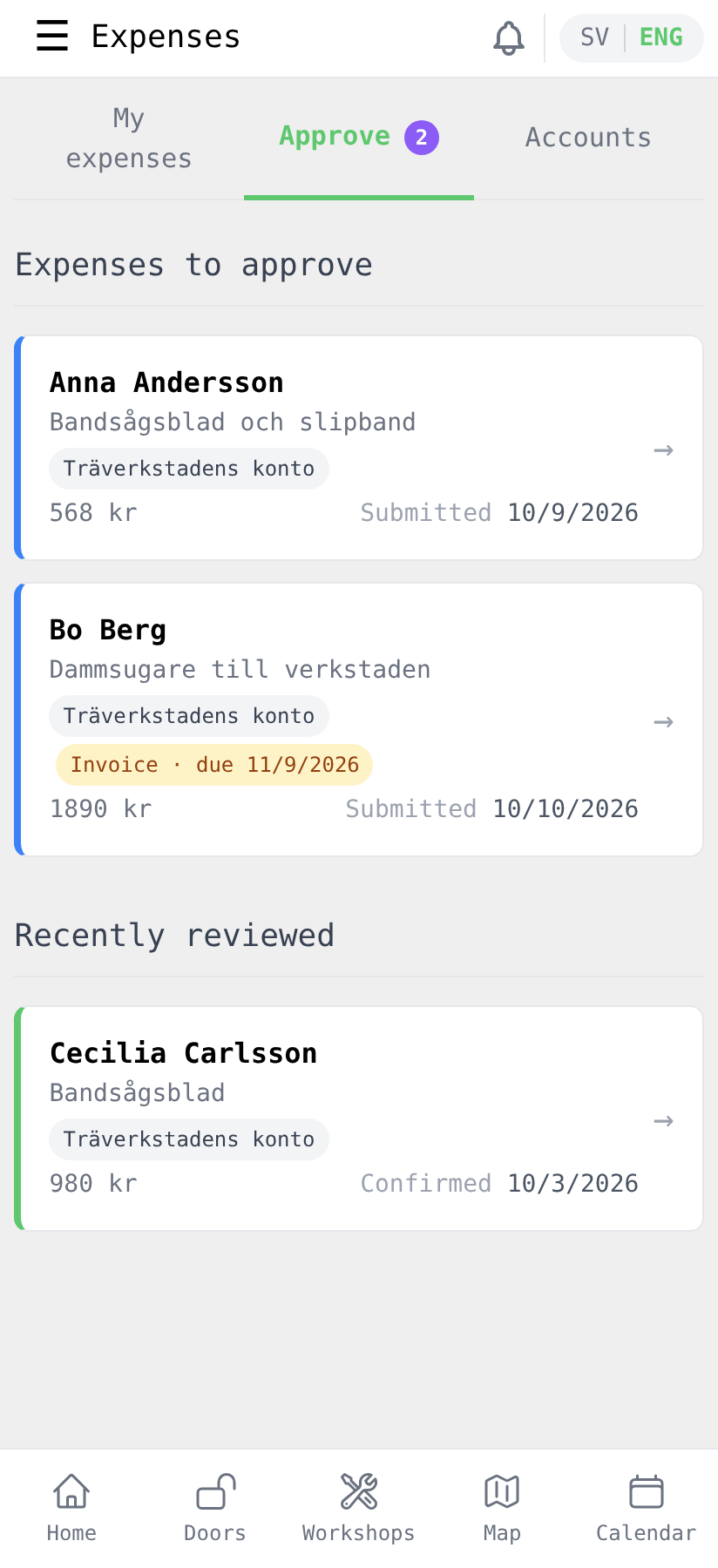
As an approver you get an extra tab, Approve, under Expenses. A number on the tab shows how many expenses are waiting.
You also find the expenses on the account's own page. An expense waiting for you is marked Waiting for you. Expand the card and tap Review → to open it.
Open an expense and check that:
- the receipt or invoice is legible and matches the amount,
- the expense is on the right account,
- the purchase is reasonable for the group.
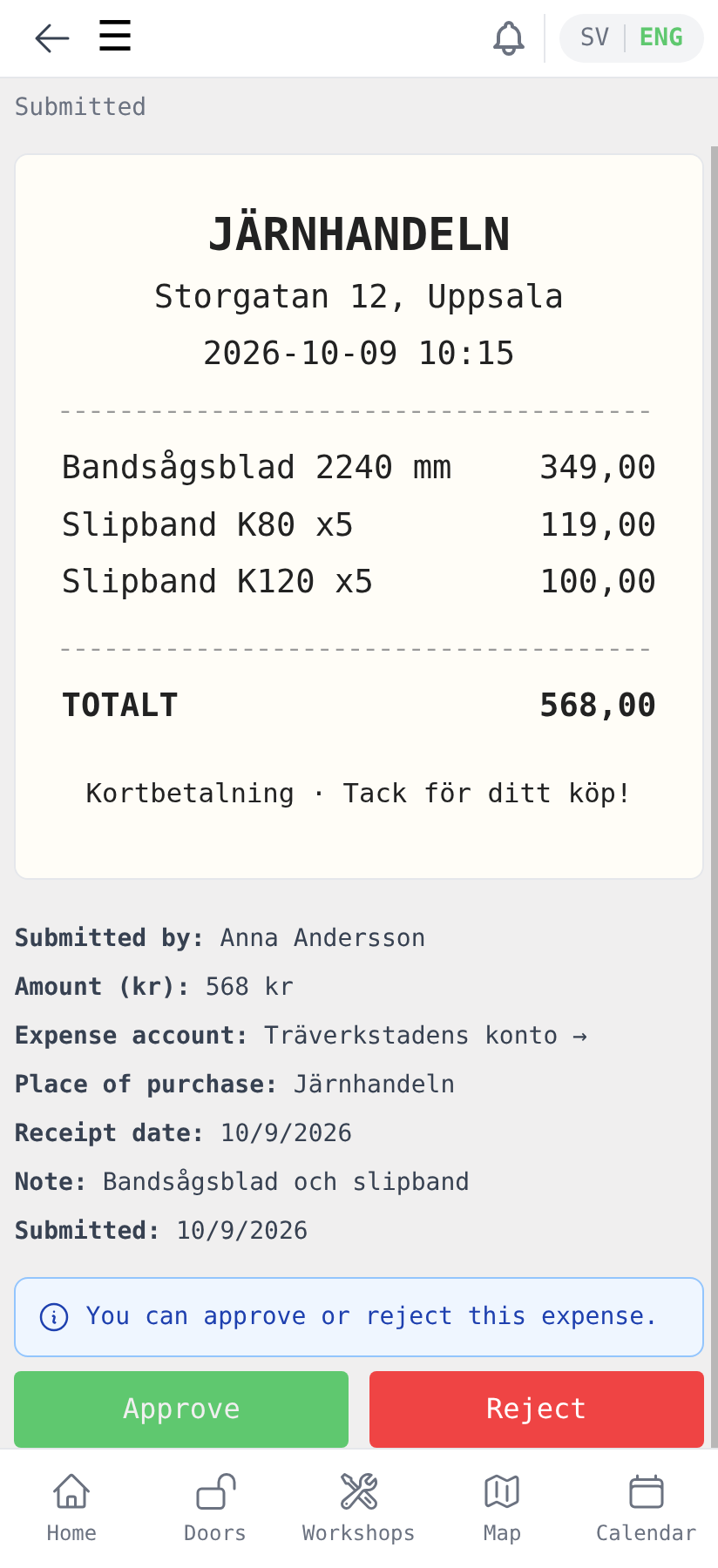
Then tap Approve or Reject:
- Approve makes the expense Confirmed, and it moves on to the treasurer.
- Reject requires a reason. It is shown to whoever submitted the expense, so say what needs correcting.
You can't approve your own expenses; someone else approves them. Expenses you have reviewed show under Recently reviewed on the same tab.
Undo an approval
If you approved by mistake, you can undo it as long as the treasurer hasn't paid the expense. Open the expense, for example under Recently reviewed, tap Undo approval and then Yes, undo the approval. The expense goes back to Submitted and can be reviewed again. Any approver of the account can undo, not only the one who approved.
5. Follow the group's budget
An expense account can have a budget for the year. The board sets it.
All accounts
Under Expenses → Accounts, tap Budget at the top right. At the top you see a summary for all accounts you have access to: how much is spent, how much is left, and the whole budget. Below it each account has a card with the same figures. A bar that turns red means the account is over budget.
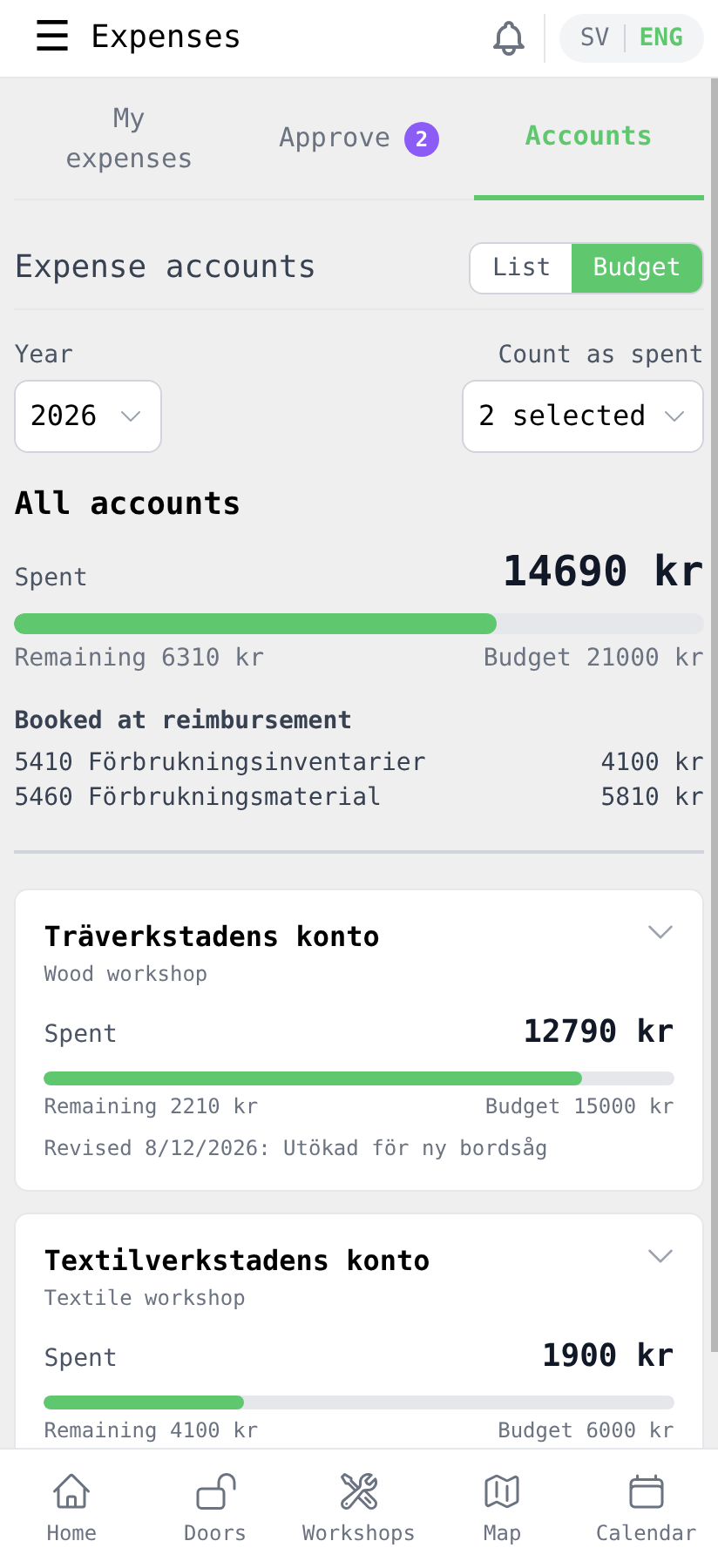
Count as spent controls which expenses count: submitted, confirmed and reimbursed/paid. By default confirmed and reimbursed/paid count.
Booked at reimbursement shows where the costs ended up in the association's books. When the treasurer marks an expense as reimbursed or paid, the treasurer also chooses a bookkeeping account, for example 6110 Office supplies. The bookkeeping account is not the same as the expense account:
- The expense account decides which group the expense belongs to, and so who may make and approve it.
- The bookkeeping account is a bookkeeping detail chosen by the treasurer, saying what kind of cost it is.
Expenses on the same expense account can therefore be booked on different bookkeeping accounts. The summary at the top shows the split for all accounts. For a single account, tap the arrow in the card's top right corner. Only reimbursed and paid expenses have a bookkeeping account, so the others don't show here.
One account
Tapping an account takes you to the account's page. It shows the year's budget at the top, and below it every expense on the account, including other members'. Choose the year and which statuses to show with the pickers at the top.
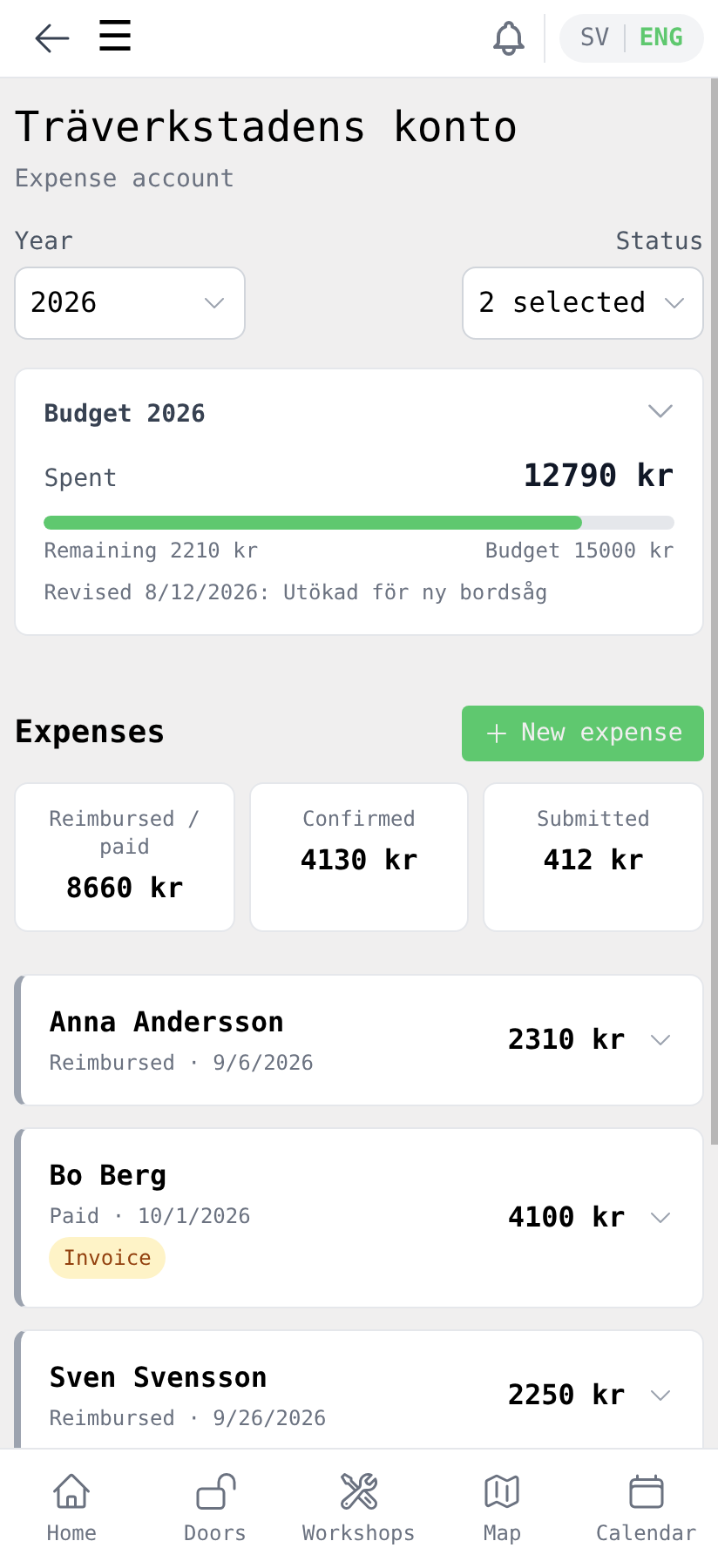
From here you can also start a new expense on that account.