
Allow location and notifications
The app asks your phone for two permissions: location, needed to unlock the doors, and notifications, which let the app remind you before your membership expires and tell you when a new message has arrived. This guide covers when the prompts appear, what happens if you decline, and how to change your mind later on Android and iPhone.
Both permissions are optional. Everything else in the app — renewing your membership, reading messages, viewing your account and profile — works without them.
1. When the app asks
Location
The app starts looking for your position as soon as it opens, whichever page you land on. The first time, your phone therefore shows a system prompt along the lines of "app.uppsalamakerspace.se would like to use your location" almost immediately. Choose Allow while using the app (Android) or Allow While Using App (iPhone). The app never needs your location in the background.
On iPhone you may get two prompts in a row the first time: one from iOS about whether Safari or the web app may use location services at all, then one for this particular website. Say yes to both.
Your location is used for one thing only: when you tap a door tile, the makerspace verifies that you are actually standing at the entrance before opening the lock. The position is not sent to the server at any other time and is not stored.
Notifications
The notification prompt appears once you are logged in and have landed on the home page as a member. The app then asks your phone for permission to send push notifications, and the system shows its usual prompt.
On iPhone the prompt may not appear on its own — iOS requires you to tap something before a web app is allowed to ask. Look at the bell icon in the top right: an amber ! means notifications are not enabled. Tap the bell to open Notification Settings, then tap Allow notifications. The system prompt follows.
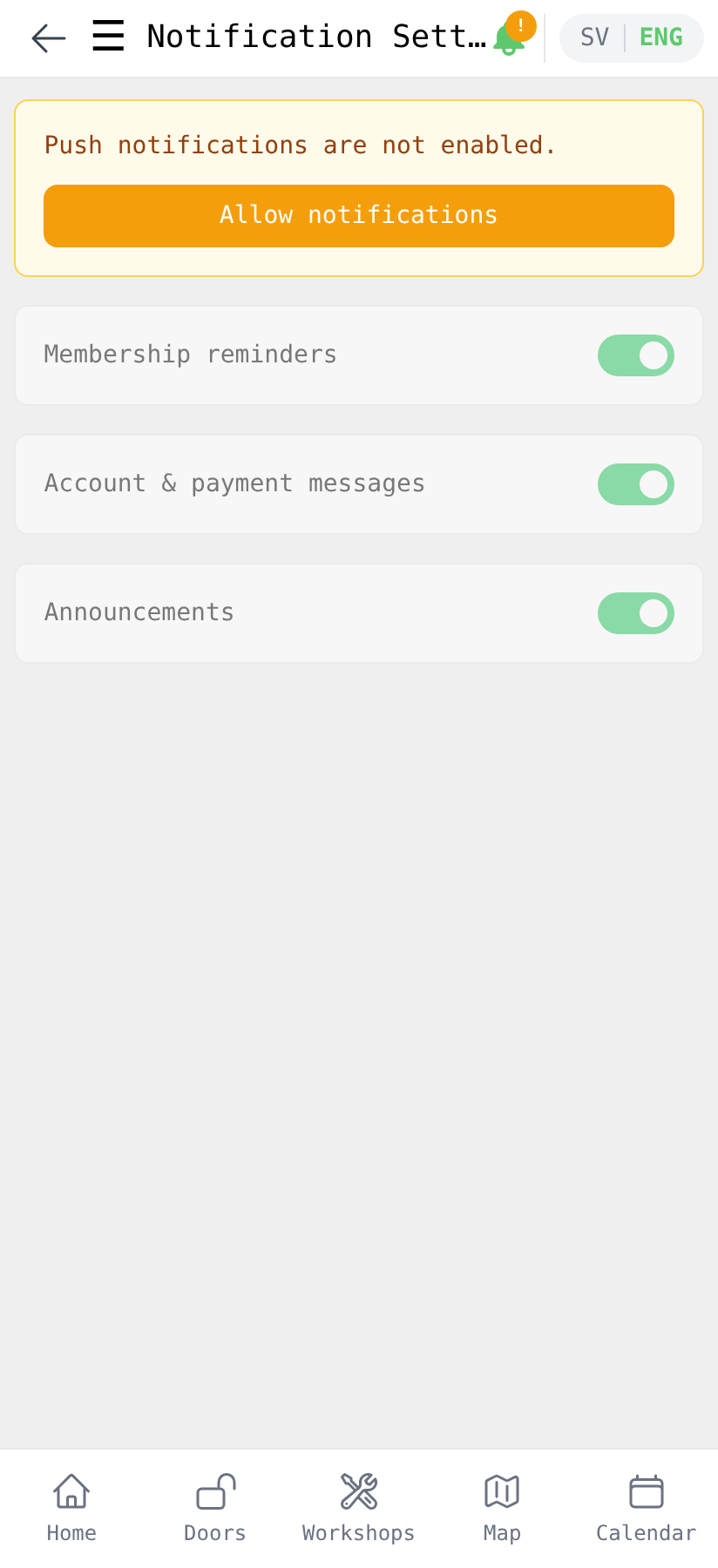
Notifications only work in the installed app on iPhone. If you open the site in the Safari browser, Notification Settings shows an install button instead — see the Install the app guide. On Android, notifications work both in Chrome and in the installed app.
2. What happens if you decline
Without location
The Doors page does not work. The door tiles stay grey, and a red box at the top reads "Location access denied. Please enable location to unlock doors." followed by a link to this guide. Below the tiles, the Door not turning green? panel says the same thing.
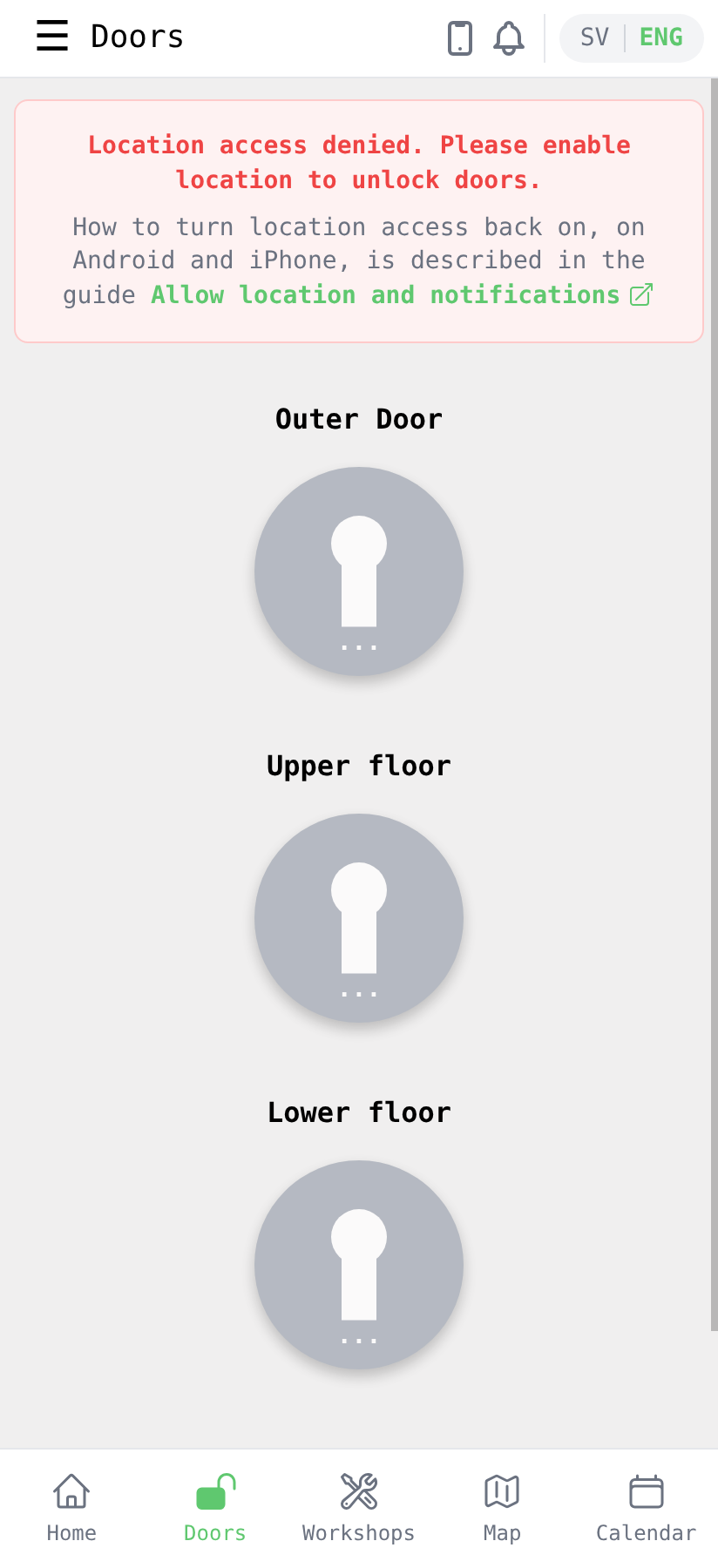
Your phone will not ask again on its own. Both Android and iPhone remember a "no", so to move on you have to change the setting manually as described in section 3 and then tap Try again in the panel.
Without notifications
You get no push notifications. Concretely, that means:
- No reminder about 14 days before your membership expires. The reminder is sent only as a notification, not by email, so without notifications you get no advance warning at all.
- No signal when the board sends an announcement or a personal message to you.
The messages are still in the app — you find them under Messages on the home page — but you have to open the app yourself to notice that something new has arrived. The bell icon keeps showing the amber ! as a reminder that notifications are off.
3. Changing your mind later
Android (Chrome)
Chrome manages permissions per website, and the installed app shares its settings with Chrome. There are three ways in; pick whichever suits you:
Via the app icon (installed app): long-press the UMS icon, tap App info (ⓘ), choose Permissions, and set Location to Allow only while using the app and Notifications to Allow.
Via Chrome's settings: open Chrome, tap ⋮ in the top right, choose Settings → Site settings. Under Location and Notifications respectively, find app.uppsalamakerspace.se in the list of blocked sites — tap it and choose Allow.
Via the address bar (in the browser): with the site open in Chrome, tap the lock icon or the settings icon to the left of the address, choose Permissions, and turn on whatever is missing.
iPhone
iOS treats the Home Screen web app as part of Safari, so the location permission lives under Safari rather than under a separate UMS entry.
Location: open Settings → Safari → Location and choose Ask or Allow. Also check that Settings → Privacy & Security → Location Services is on and that Safari Websites there is set to While Using the App. Then open the app and go to Doors — with Ask selected, the prompt appears again; tap Allow.
Notifications: once the app has asked once, the web app gets its own row under Settings → Notifications. Find UMS there and turn on Allow Notifications. If the app has never asked, open the app instead, tap the bell with the amber !, and then Allow notifications.
Check that it works
- Location: go to Doors, open the Door not turning green? panel and tap Try again. The red box should disappear and the tiles show a distance. Standing at the makerspace, they turn green.
- Notifications: tap the bell. The amber ! should be gone and Notification Settings should read Push notifications enabled with green toggles for the categories you want.